
How to Print Cheques in Bill Saathi
Print cheques with perfect alignment on any Laser, Inkjet or Deskjet printer. Follow this simple 8-step guide.
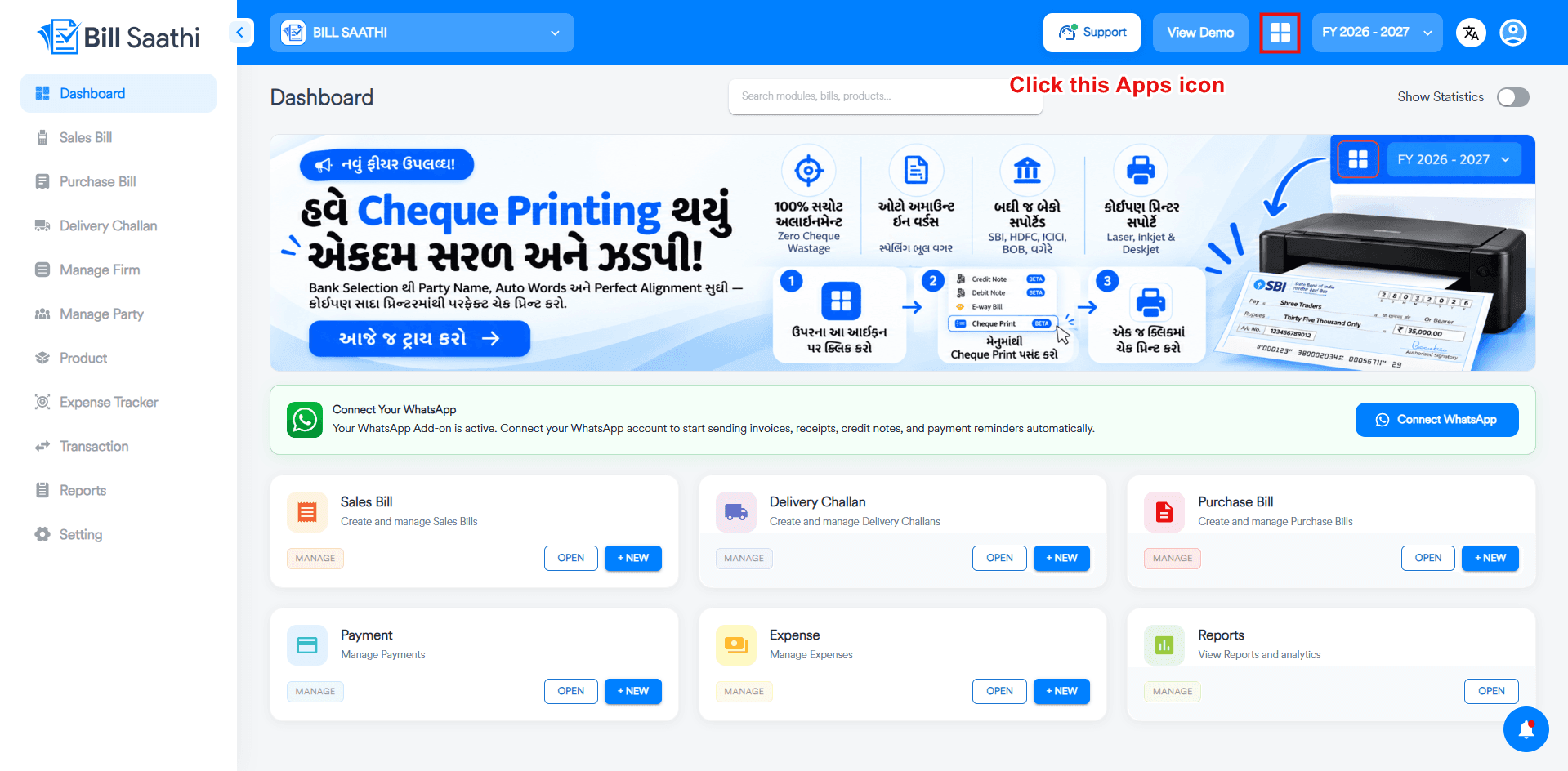
Click the Apps Icon
Open Bill Saathi and click the grid (apps) icon in the top bar to see more modules.
- Log in to your Bill Saathi dashboard.
- Look at the top-right header, next to View Demo.
- Click the grid icon (circled in red).
- A menu with more modules will open.
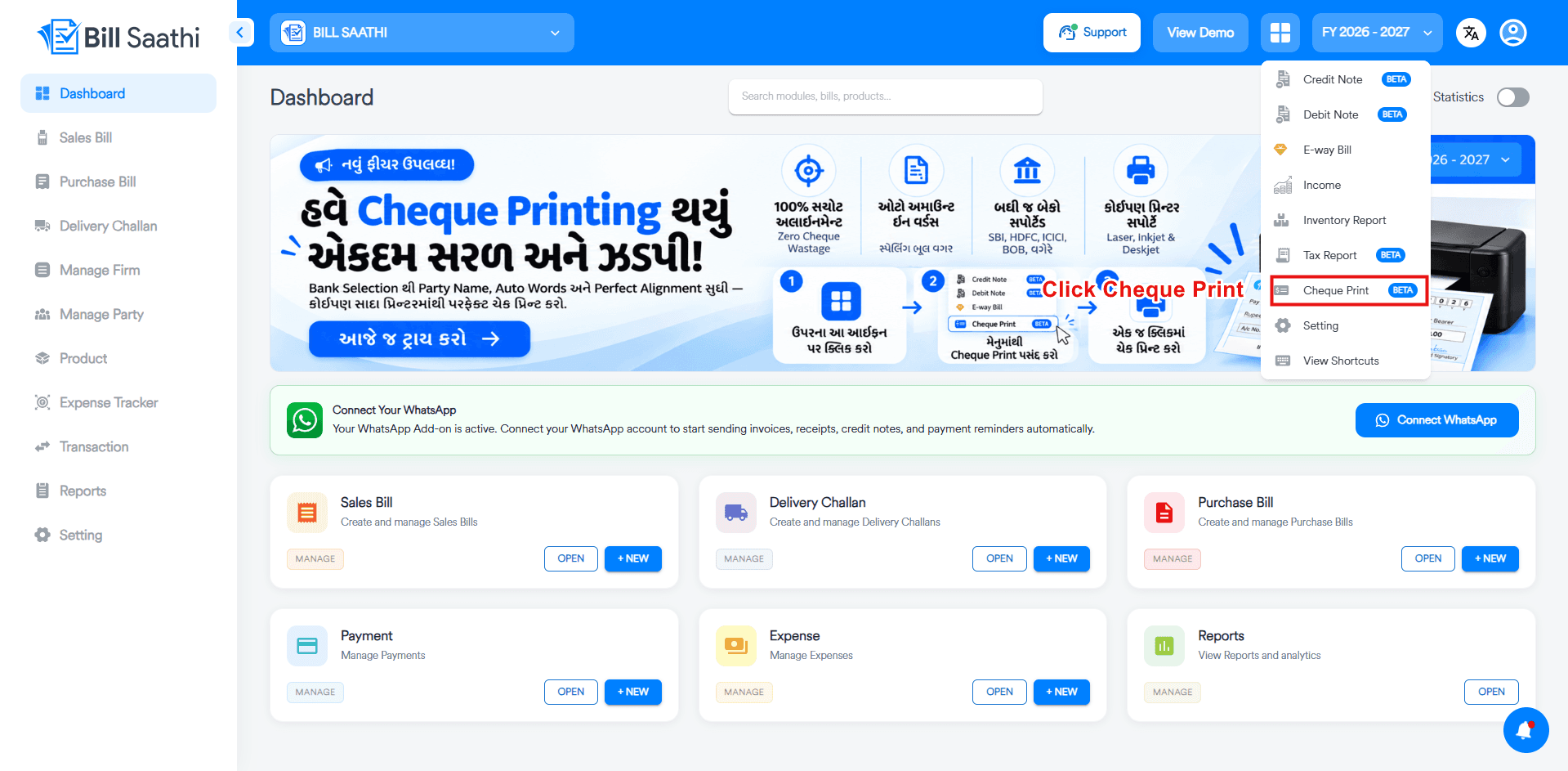
Select Cheque Print
From the menu choose the Cheque Print module.
- In the dropdown, find the Cheque Print option (marked BETA).
- Click on Cheque Print to open the cheque module.
- Other options like Credit Note, E-way Bill and Setting are also listed here.
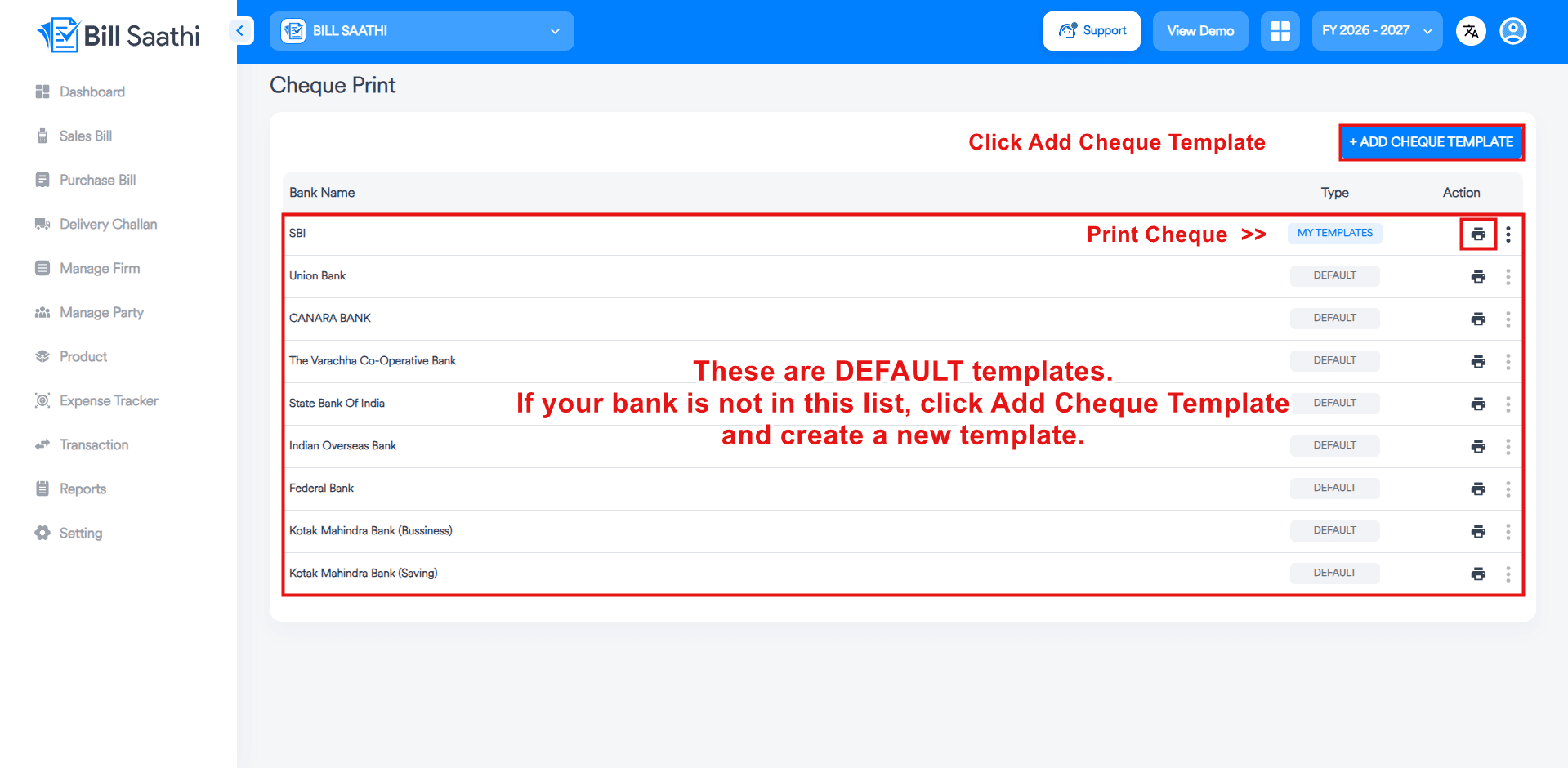
Add Cheque Template
The Cheque Print page lists your banks. Add a template for your own cheque book.
- Ready-made DEFAULT templates are available for popular banks. Your own saved templates show as MY TEMPLATES.
- To print a cheque, click the Print icon in that bank's row.
- If your bank is not in this list, click + ADD CHEQUE TEMPLATE (top right) and create a new template.
- Next, enter your bank details and upload your cheque image.
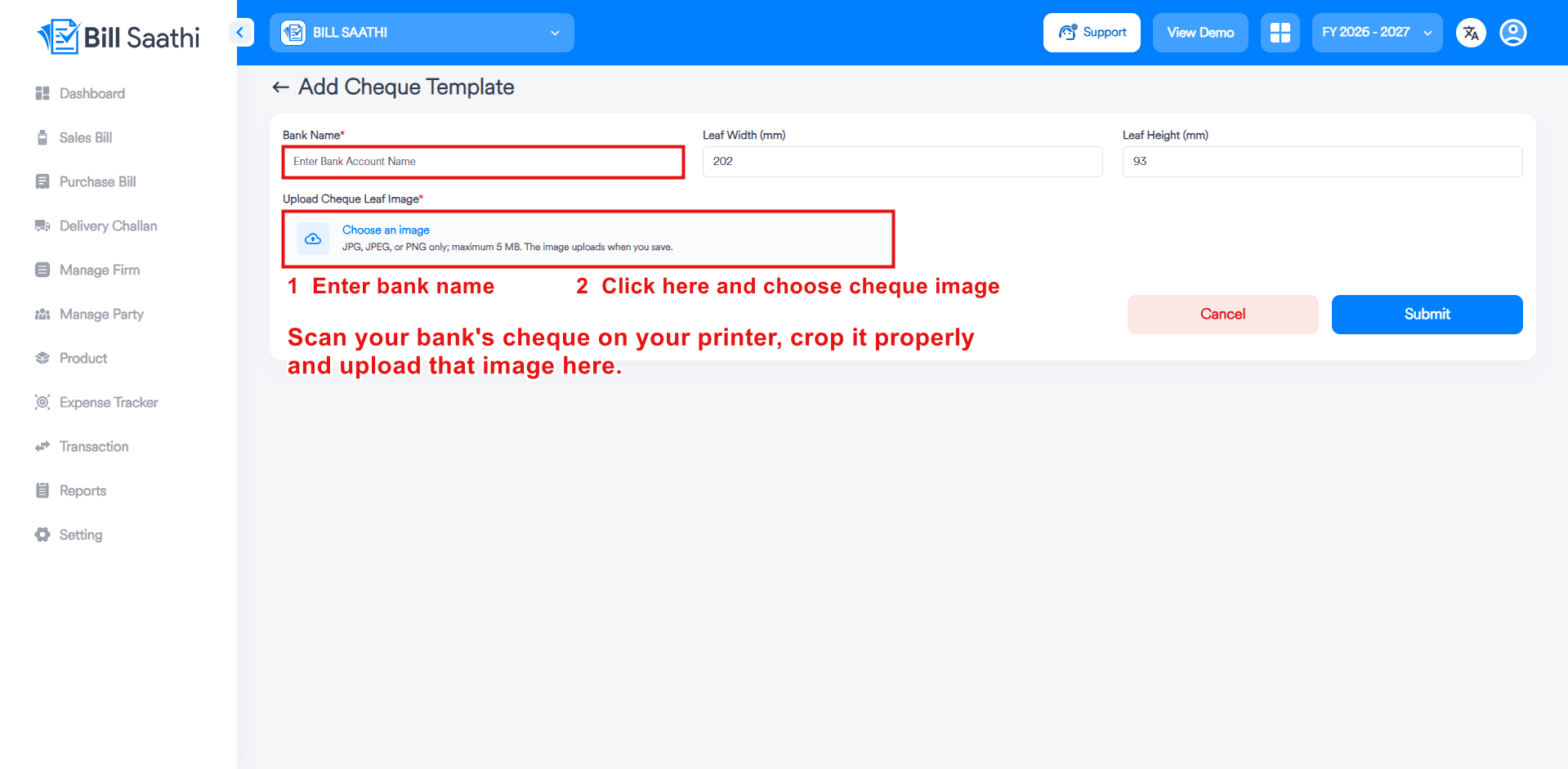
Enter Bank Name and Upload Cheque Image
Give the template a name and upload a clear photo or scan of a blank cheque leaf.
- Enter the Bank Name (required).
- Keep Leaf Width (mm) and Leaf Height (mm) as per your cheque leaf. The default is 202 x 93.
- Scan your bank's cheque on your printer and crop it properly.
- Under Upload Cheque Leaf Image, click Choose an image and upload that image (JPG, JPEG or PNG, max 5 MB).
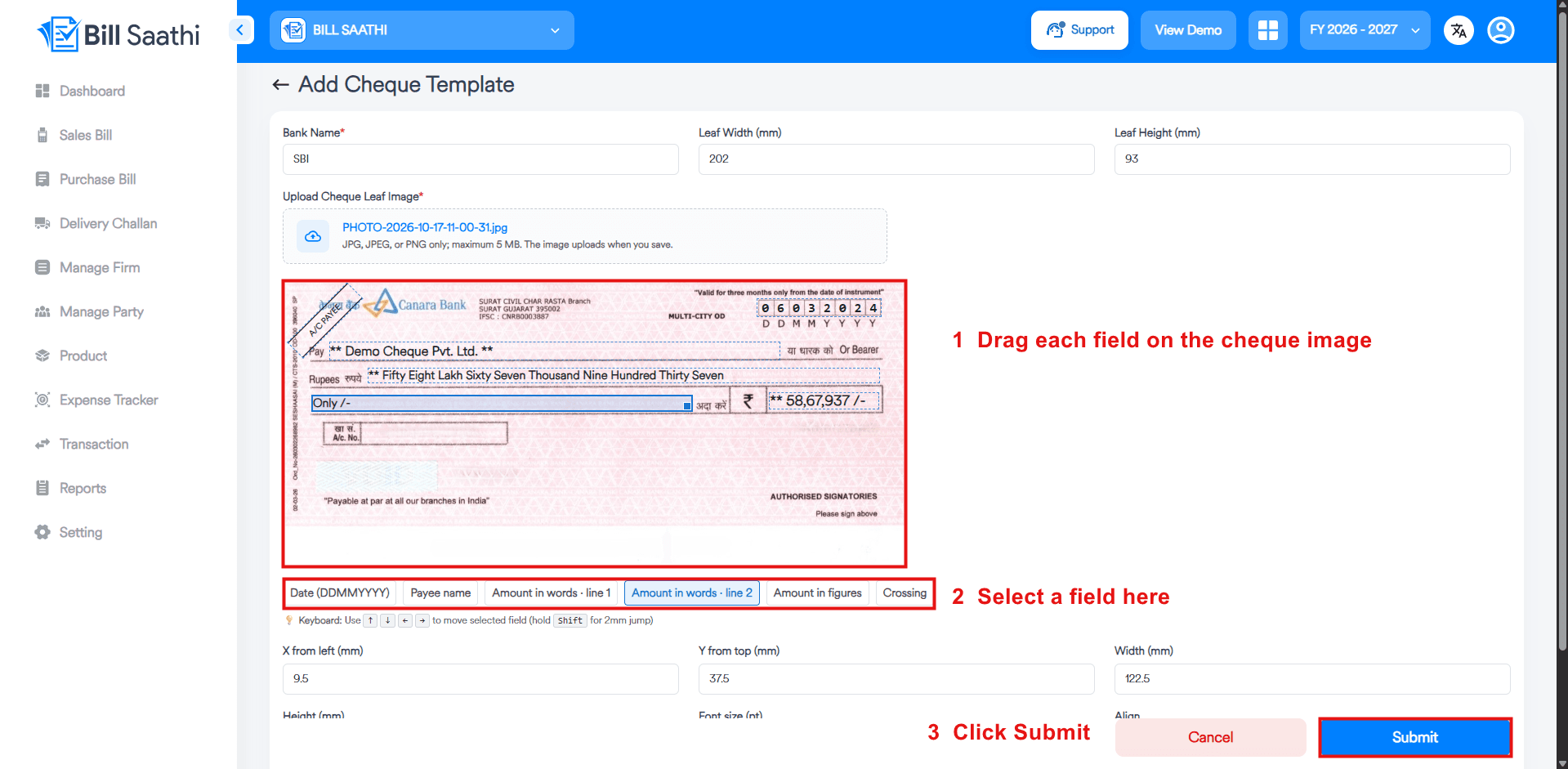
Position the Cheque Fields
Place each field exactly where it appears on your cheque, then save the template.
- Select a field: Date, Payee name, Amount in words - line 1, Amount in words - line 2, Amount in figures or Crossing.
- Drag the field on the cheque image, or use the arrow keys (hold Shift for a 2 mm jump).
- Fine-tune using X from left, Y from top, Width and Font size.
- When all fields are aligned, click Submit.
Fill Cheque Details
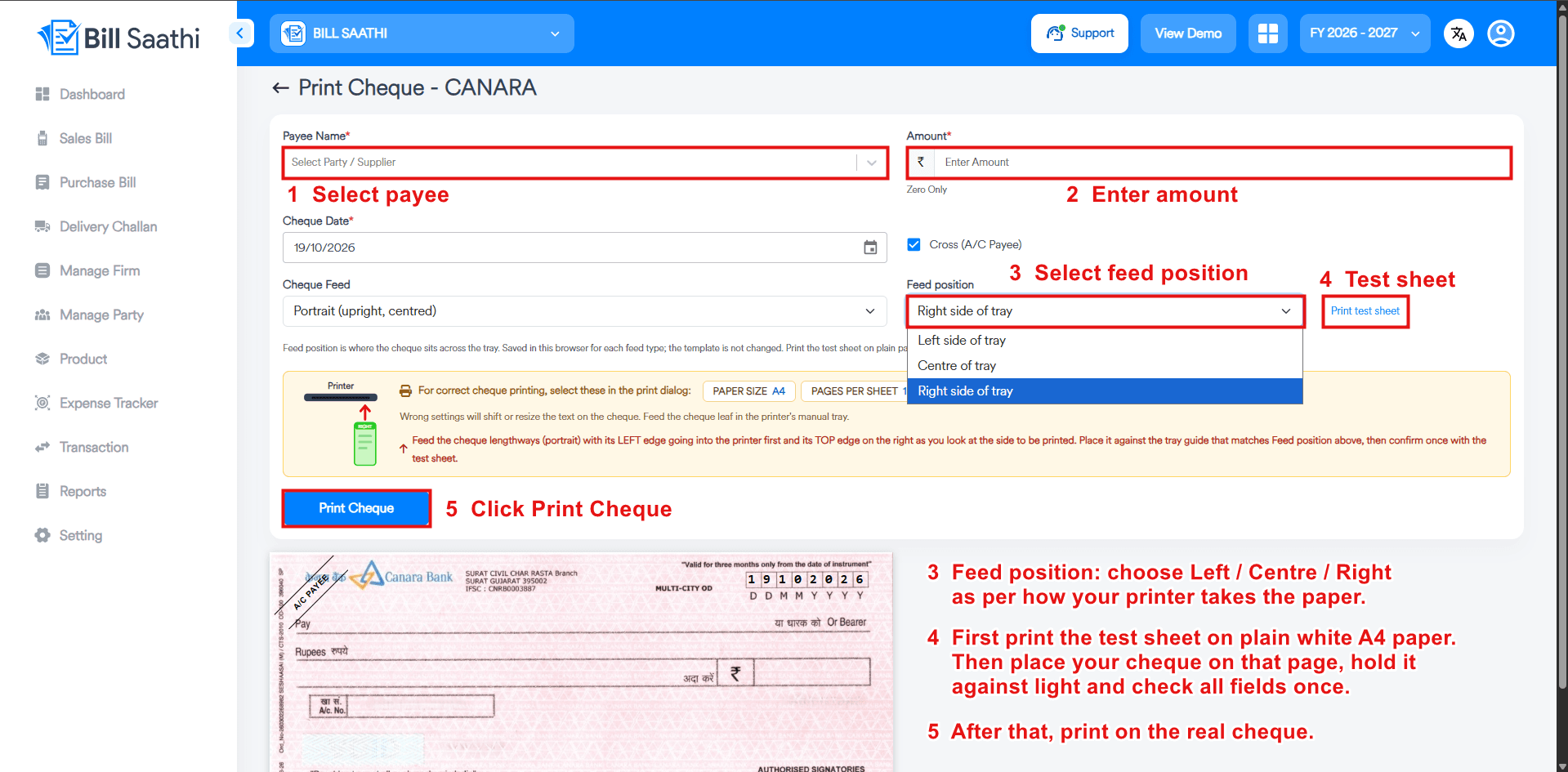
Open your template and enter the payment details.
- Select the Payee Name from your party list.
- Enter the Amount. It is converted to words automatically.
- Check the Cheque Date and tick Cross (A/C Payee) if needed.
- Set Feed position (Left, Centre or Right side of tray) according to how your printer takes the paper.
- Before printing on the real cheque, click Print test sheet first and print it on a plain white A4 paper.
- Place your cheque on that printed page, hold it against light and check all fields once.
- Then click Print Cheque to print on the real cheque.
Print a Test Sheet
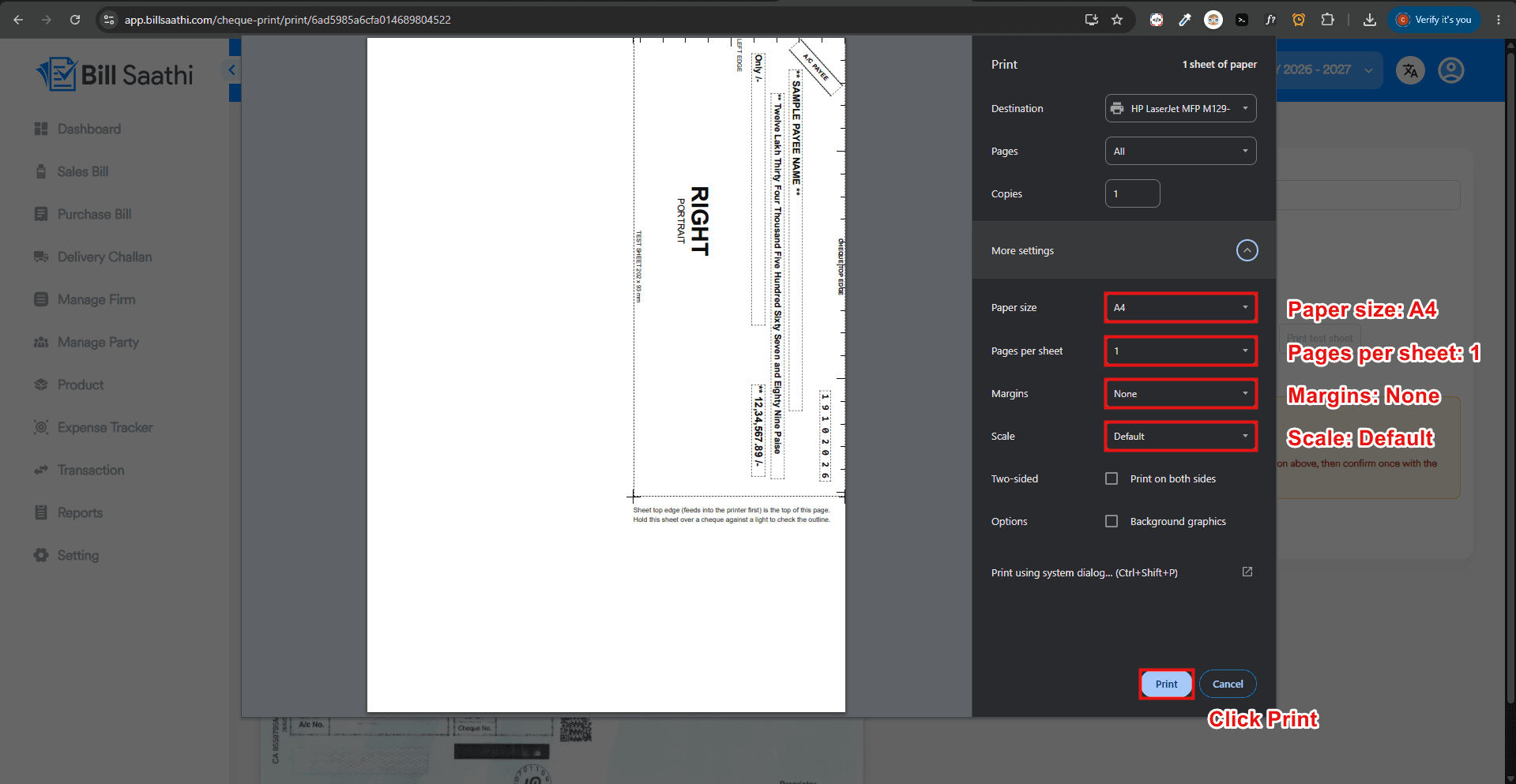
Always test on a plain A4 paper before printing on the real cheque.
- Print the test sheet on a plain white A4 paper, not on the real cheque.
- In the print dialog set Paper size to A4.
- Set Pages per sheet to 1.
- Set Margins to None.
- Set Scale to Default.
- Place a real cheque over the printed sheet, hold it against light and check that every field lines up.
Print the Actual Cheque
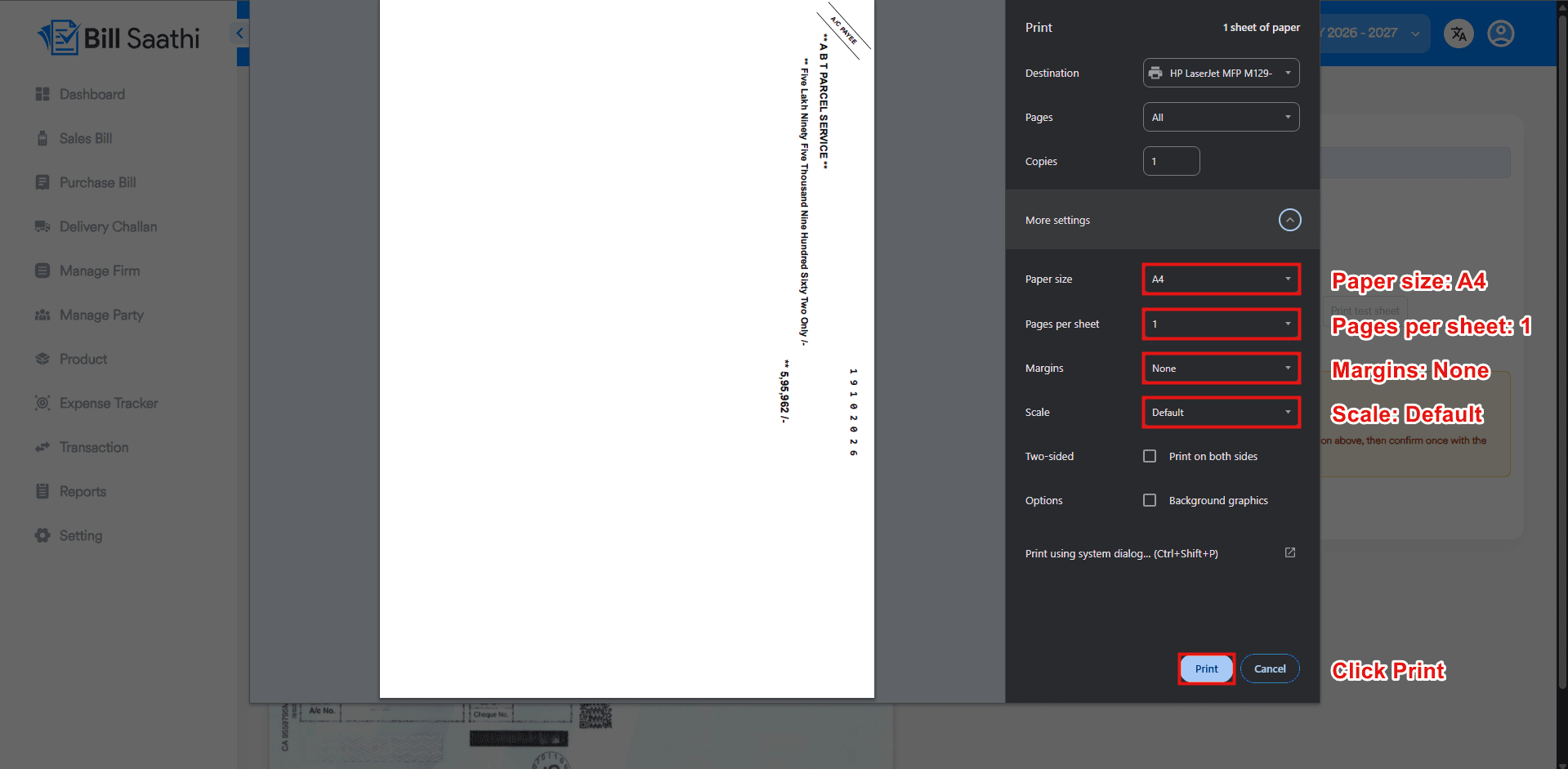
Once the test sheet matches, insert your cheque and print.
- Feed the cheque in the printer tray exactly as shown in the instruction box.
- Keep the same print settings: A4, 1 page per sheet, Margins None, Scale Default.
- Click Print. Payee, amount in words and figures print in the right place.
Cheque Printing Successful
Your cheque is printed with payee, amount in words and figures in the exact right place.
Zero Wastage
Test sheet helps you align before using a real cheque.
Auto Amount in Words
Amount is converted to words without spelling mistakes.
All Banks Supported
SBI, HDFC, ICICI, BOB and more, or add your own template.
One Click Print
Reuse saved templates and print cheques in one click.
Cheque Printing FAQs
Can I print cheques from Bill Saathi on any printer?
+
Yes. Bill Saathi prints cheques on Laser, Inkjet and Deskjet printers. Set the Feed position (Left, Centre or Right side of tray) according to how your printer takes the paper and take a test print before printing on the real cheque.
My bank is not in the default template list. What should I do?
+
Click Add Cheque Template, enter the bank name, upload a properly cropped scan of your cheque, place the Date, Payee name, Amount in words, Amount in figures and Crossing fields on the image and click Submit. Your template is saved under MY TEMPLATES.
Why should I print a test sheet first?
+
A test sheet on plain white A4 paper shows exactly where each field will print. Place your cheque on that page, hold it against light and check every field once, so no real cheque is wasted.
Which print settings should I use for cheque printing?
+
Use Paper size A4, Pages per sheet 1, Margins None and Scale Default in the print dialog. Wrong settings shift or resize the text on the cheque.
Does Bill Saathi write the amount in words automatically?
+
Yes. Enter the amount once and Bill Saathi converts it into words, so there are no spelling mistakes on the cheque.
Can I print an A/C Payee crossing on the cheque?
+
Yes. Tick Cross (A/C Payee) on the Print Cheque screen and the crossing is printed on the cheque.
Related guides
Ready to simplify your billing?
Stop wasting cheques on misaligned prints. Experience perfect cheque printing today.
Go to Bill Saathi